Tutorial
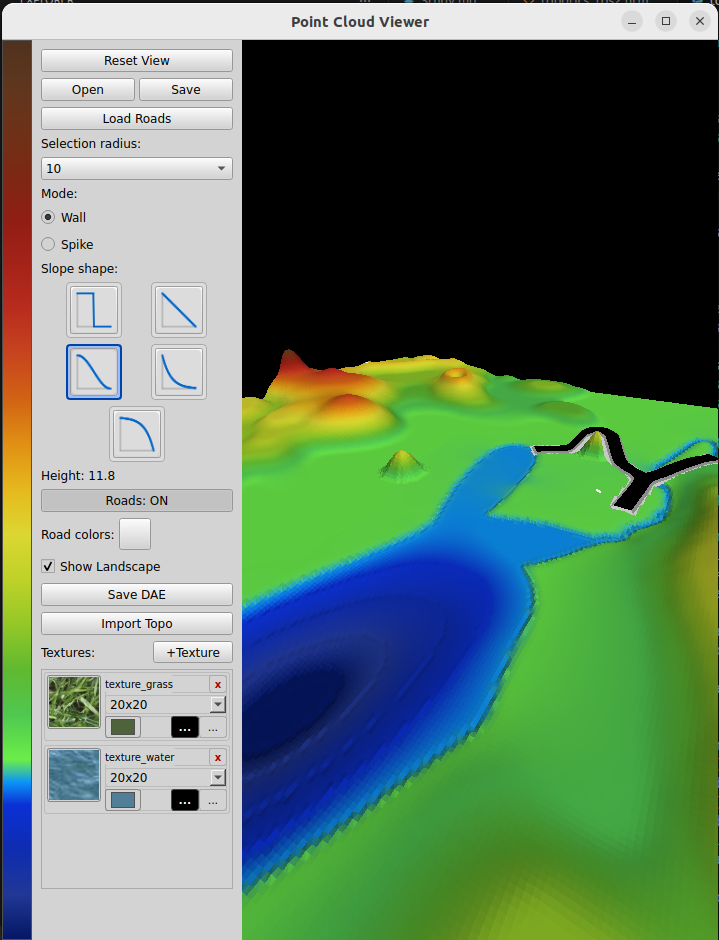
Reset View
This button does just that: removes everything, leaving an empty view
Open and Save buttons
In the "utils_commercial" folder, you will find a "topo_stored" folder, which is a default location to store your work. "Save" allows you to save the current landscape, "Open" allows you to load the previously saved work.
Note that we do not save files the project refers to. For example, let's say you have a favorite texture to draw roads. You store it as a .png file. Then you use it and save your work. We have two choices: either to copy this texture to store it together with the landscape, or refer to original one.
Both have pros and contras. If you copy the texture, then, if you find a better one and replace it, it will only affect new work, as stored one will use old version.
If you refer to an existing texture, you should not remove it, which is hard to remember.
I use the "refer" approach: if you save the work that uses certain texture or roads network, you are supposed to NOT delete these external files.
Selection Radius
You can select area on the landscape by using SHIFT-left mouse click, Unselect by using CTRL-left click and unselect all by using ALT-left click. The Selection Radius combo box specifies the radius of selection brush:

Mode and Slope Shape
After you made a selection, you can left click and draw up or down. That will extrude either "wall" or a "hill/spike", depending on the Mode selected:
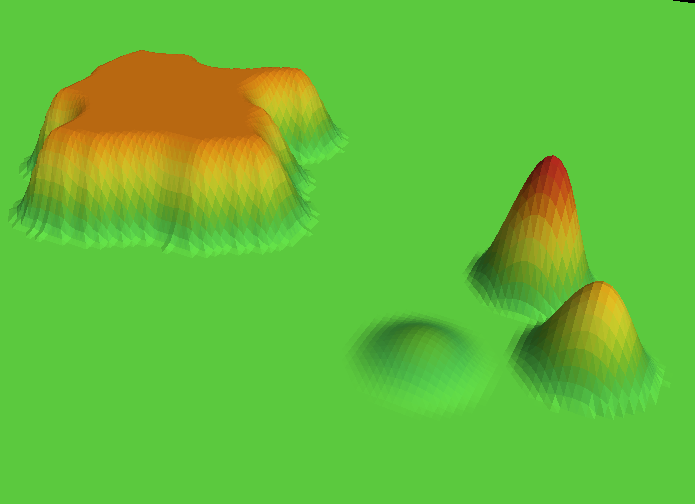
As you can see, "Wall" pulls up the entire selection, while "Spike" ignores selection, using Selection Radius to detedmine what "hill" to extrude.
Slope Shape selection specifies the shape of the slope we are going to extrude:
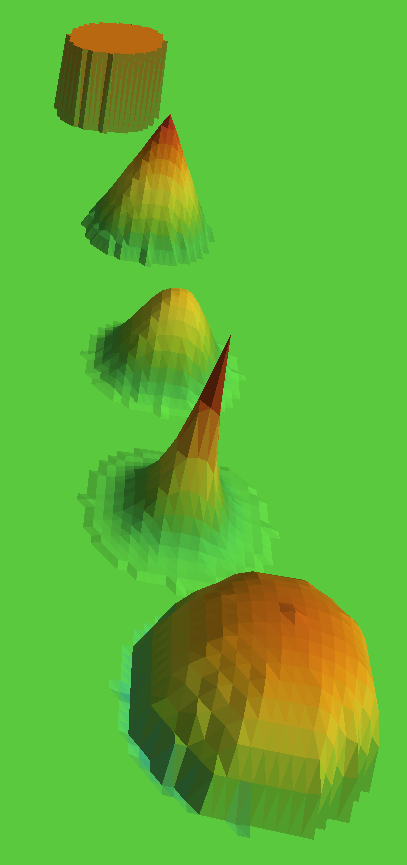
Roads ON/OFF
Shows or hides roads
Roads Colors
For debug purposes, we can use "parrot" painting style for roads, while for "nice" view, we can paint roads in realistic colors. Road is made of 3 parts: road, road shoulders and road shitches (triangles that stitch road shoulders to landscape).
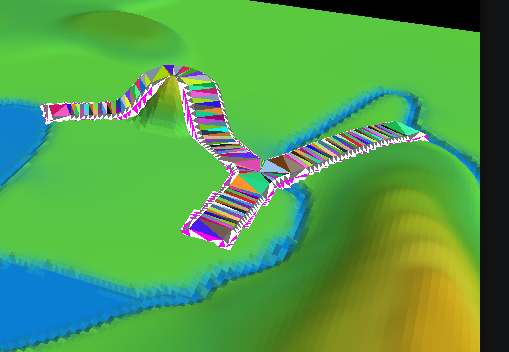
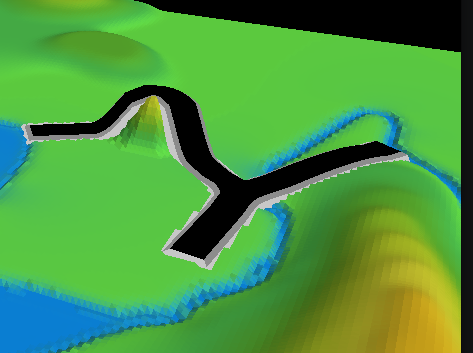
This selection does not affect what you save to DAE, which will always use road textures.
Show Landscape
Shows or hides the landscape.
Save DAE
Exports landscape with all roads and textures to a DAE file that can be used in Gazebo as was discussed in earlier sections.
Note that there are two "modes" of saving DAE. First,
Import Topo
Topo maps that I use in this app are rather simple, each topo line is color coded. The table that maps height to color can be found in topo_colors.py file.
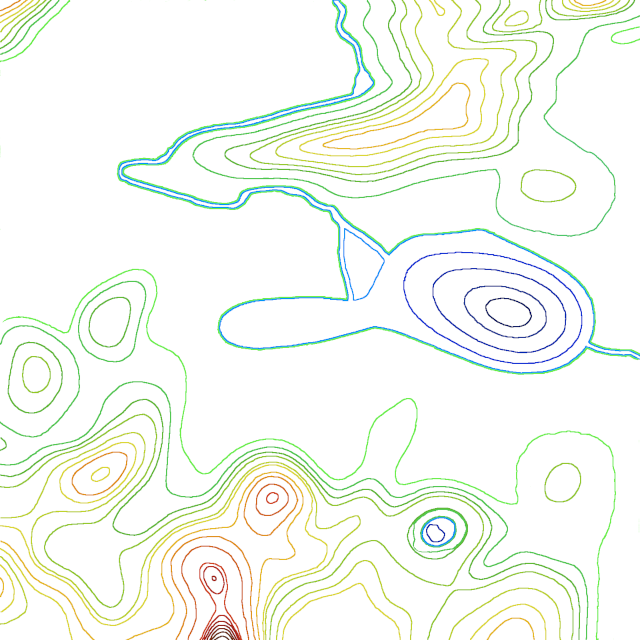
Few words about optimal size of this image. The app uses couple of files for which size maters. This one, default texture (used if list of textures is empty), and texture masks that program generates. They all should be large enough to make image smooth. I use 1200 to 1600 px, it is a reasonable compromise between size and speed.
Textures
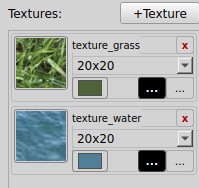
Pressing "+Texture" allows you to add a .png or .jpg file to a list of textures. The list item has the following elements: texture itself - a 50x50 top left crop of a texture file; a texture name (like "texture_grass"); a "close" ("x") icon to remove texture from the list; a "color" icon: we do not want to use textures in the app, just in the DAE we export. So instead of texture, the landscape in the app will be painted by an average color of the texture, clicking this icon allows you to select a different color; blask "Load Mask" icon, useful when mask was saved earlier and you do not want to repaet the work; and "Select Texture" icon to replace texture in place.